Cómo ver cuánto estás gastando en WhatsApp dentro de tu Business Manager
Ya llegaron las primeras facturas del nuevo modelo de cobro. El consumo y la factura están en dos pantallas distintas, y confundirlas causa casi todos los sustos. Dónde está cada una, cómo leerlas y qué vigilar cada mes.
25 de octubre de 2026·7 min de lectura·Equipo SmartChat
Desde el 1 de octubre, Meta cobra prácticamente cada mensaje que sale de tu número. Ya llegaron las primeras facturas y la pregunta se repite: ¿dónde veo exactamente cuánto estoy gastando? Está bien escondido, así que aquí va el camino con capturas.
Paso 1: llegar al Administrador de WhatsApp
El consumo no está en el panel de tu proveedor ni en la app: está en tu cuenta de Meta.
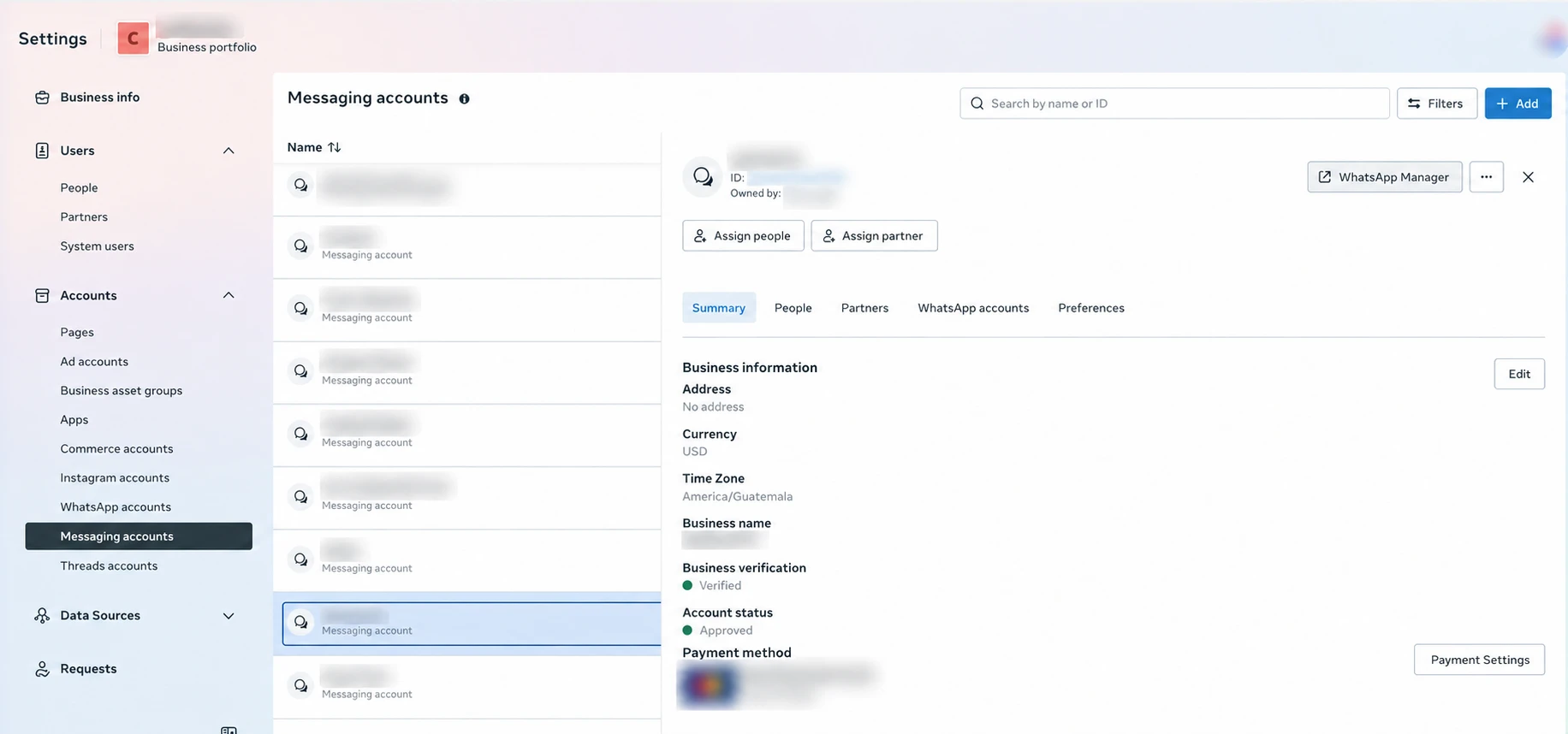
Entra en la configuración de tu cuenta de Meta Business.
En el menú lateral, abre Accounts → Messaging accounts (Cuentas → Cuentas de mensajería).
Selecciona tu cuenta en la lista.
Arriba a la derecha del panel que se abre, pulsa WhatsApp Manager.
Desde aquí salen los dos caminos: WhatsApp Manager arriba a la derecha lleva al consumo; Payment Settings abajo lleva a la facturación.
Aprovecha esta pantalla para comprobar dos cosas que importan: que Business verification diga «Verified» y que haya un método de pago registrado. Sin método de pago, Meta deja de entregar tus mensajes aunque estés por debajo del nivel gratuito.
Paso 2: la pestaña que casi nadie encuentra
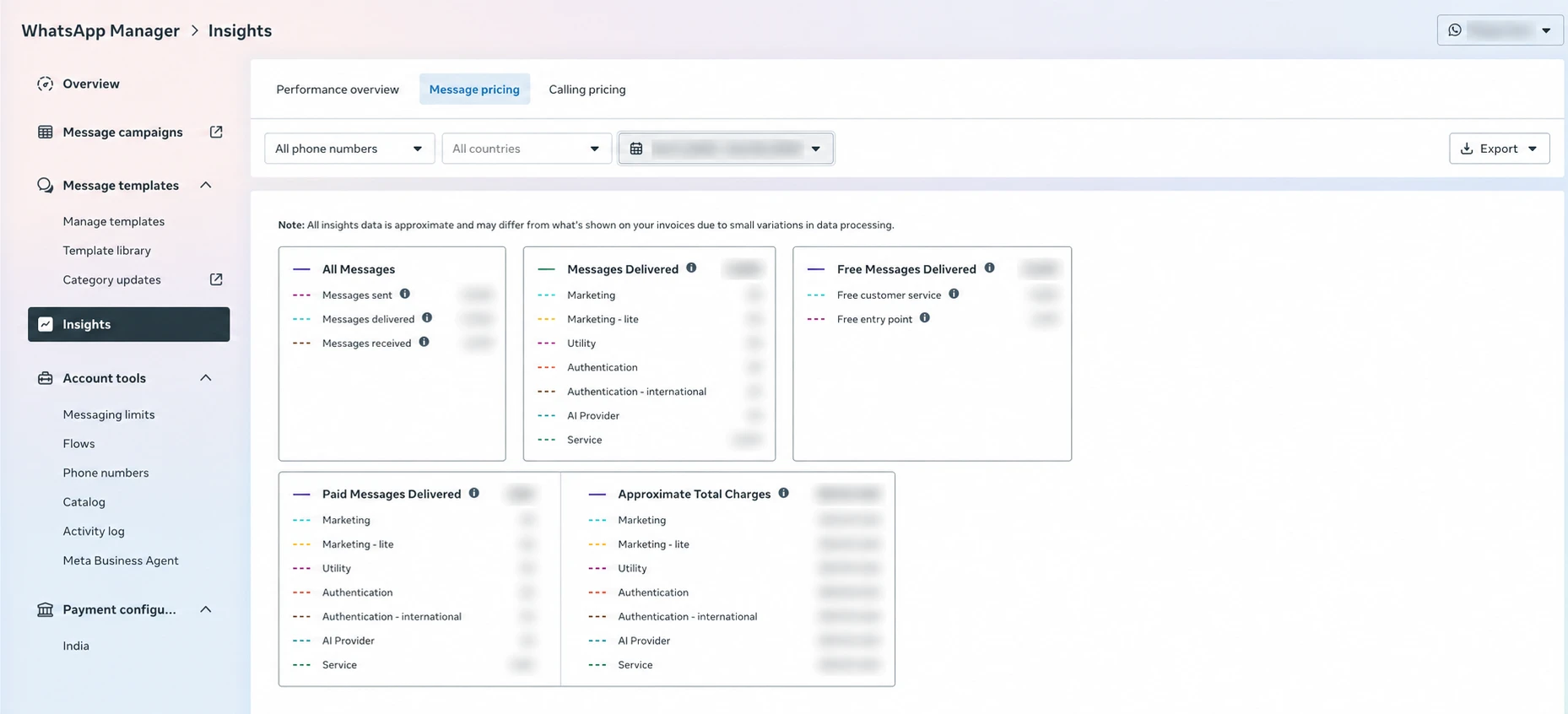
Dentro del Administrador de WhatsApp, en el menú lateral, entra en Insights. Y aquí está el detalle que se le escapa a casi todo el mundo: Insights tiene tres pestañas, y la del dinero es la del medio, Message pricing.
La pestaña Message pricing. Arriba, los filtros por número de teléfono, país y rango de fechas; a la derecha, el botón Export.
Cómo leer las cinco tarjetas
La pantalla reparte los mismos mensajes de cinco formas distintas. Entender qué responde cada una es todo el truco:
Tarjeta
A qué pregunta responde
All Messages
Cuántos mandé, cuántos llegaron y cuántos recibí. El volumen bruto.
Messages Delivered
De los que llegaron, cuántos de cada categoría. Solo se cobran los entregados.
Free Messages Delivered
Cuáles no te costaron nada. La tarjeta más importante y la que nadie mira.
Paid Messages Delivered
Cuáles sí se cobraron, por categoría.
Approximate Total Charges
Cuánto dinero es eso, por categoría.
Las categorías
Service — tus respuestas libres dentro de la ventana de 24 horas, las escriba una persona o un bot. Es la categoría nueva: hasta el 1 de octubre era gratis.
Utility — confirmaciones, avisos de envío, recordatorios.
Marketing y Marketing - lite — promociones y campañas. La categoría más cara.
Authentication y Authentication - international — códigos de verificación; los internacionales tienen tarifa propia.
AI Provider — lo que consume el agente de inteligencia artificial de Meta, que se factura aparte por tokens. Si usas tu propio modelo, esta línea debería estar en cero.
La tarjeta que deberías mirar primero
Free Messages Delivered se divide en dos líneas que valen oro:
Free customer service — los 1.000 mensajes de servicio gratis al mes por número. Aquí ves cuántos llevas consumidos. No se acumulan: lo que no uses en el mes se pierde.
Free entry point — las conversaciones que nacieron de un anuncio «clic a WhatsApp» o del botón de tu página de Facebook, que tienen 72 horas de mensajes gratis.
Si esa segunda línea está casi vacía y haces publicidad, estás dejando dinero sobre la mesa.
Por qué la estimación no cuadra con la factura
Es la confusión más común, y Meta lo avisa en la propia pantalla con una nota fácil de pasar por alto:
⚠︎ Lo dice Meta, literalmente
«All insights data is approximate and may differ from what's shown on your invoices due to small variations in data processing.»
Traducido: estos números son aproximados y pueden no coincidir con tu factura. Fíjate también en que la tarjeta se llama Approximate Total Charges. Una diferencia pequeña es normal; una grande y repetida, no.
Dónde está la factura de verdad
El importe real está en otro sitio. Hay dos caminos:
El botón Payment Settings de la pantalla del paso 1, junto al método de pago.
O Payment configuration, en el menú lateral del propio Administrador de WhatsApp, abajo del todo.
Desde ahí llegas a la actividad de pago y puedes descargar las facturas en PDF. Para contabilidad, busca el estado de cuenta (statement of accounts), que da el desglose por concepto y no solo el total.
Las cuatro revisiones de cada mes
1. ¿Cuánto te queda del nivel gratuito?
Mira Free customer service con el rango fijado al mes natural, que es como cuenta Meta. Si rondas los 1.000, estás en la frontera: un par de mensajes de más por conversación te sacan del nivel gratuito. Si te sobran muchos y pagas varios números, quizá tengas más de los que necesitas.
2. ¿Se te recategorizó alguna plantilla?
Este es el gasto silencioso. Meta puede reclasificar una plantilla ya aprobada de utilidad a marketing sin rechazarla: sigue funcionando, pero pasa a costar mucho más. En México, de $0.0085 a $0.0397 USD, casi cinco veces.
La señal en esta pantalla es que el bloque de marketing sube sin que hayas lanzado ninguna campaña. Y hay un sitio donde comprobarlo directamente: en el menú lateral, Message templates → Category updates. Lo contamos entero en la guía de plantillas rechazadas.
3. ¿Qué países se llevan el dinero?
Usa el filtro All countries de arriba y ve país por país. La tarifa es la del país de tu cliente y la diferencia es enorme: responder a Colombia cuesta $0.0008 USD y a Perú $0.03. Treinta y siete veces más. Si atiendes varios mercados, la mezcla importa más que el volumen.
4. ¿Coincide con lo que te cobran?
Pulsa Export, guarda el mes y compáralo con la factura. Hazlo una vez al mes y en dos minutos sabes si algo se está desviando.
Si no puedes ver estas pantallas, pregúntate por qué
Todo esto da por hecho que el consumo se factura en tu propio Business Manager. Muchos proveedores no lo hacen así: compran el tráfico a Meta a su nombre y te lo revenden con un margen. En ese caso no verás facturación en tu cuenta, y puede que ni siquiera el consumo.
No es ilegal ni raro, pero tiene una consecuencia concreta: no puedes contrastar lo que pagas con las tarifas oficiales. Si te facturan desde fuera, pide el desglose por categoría y país y compáralo tú.
La comprobación de dos minutos
En Paid Messages Delivered, toma los mensajes de una categoría, filtrando por un país.
Multiplícalo por la tarifa oficial de Meta para ese país.
Compáralo con lo que te cobran a ti.
Si lo que te cobran es mayor, la diferencia es el margen de tu proveedor. Puedes hacer la cuenta con nuestra calculadora, que usa las tarifas oficiales país por país.
Cómo funciona con SmartChat
El consumo se factura directamente en tu propio Business Manager, con tu método de pago. Las pantallas de este artículo son tuyas y muestran cifras de Meta, sin capas intermedias. Y no aplicamos ningún recargo: nuestro plan cubre la plataforma, el tráfico va entre tú y Meta.
Meta reorganiza estas secciones cada pocos meses y los nombres cambian entre idiomas. Si no encuentras algo donde lo decimos, busca por el concepto —«Insights», «Message pricing», «Payment settings»— más que por la ruta exacta.
How to see what you are spending on WhatsApp inside your Business Manager
The first invoices under the new billing model have arrived. Usage and billing live on two different screens, and mixing them up causes almost every scare. Where each one is, how to read them, and what to watch every month.
October 25, 2026·7 min read·SmartChat Team
Since October 1, Meta charges for practically every message leaving your number. The first invoices have arrived and the same question keeps coming up: where exactly do I see what I am spending? It is well hidden, so here is the route, with screenshots.
Step 1: getting to the WhatsApp Manager
Usage is not in your provider's dashboard or in the app: it is in your Meta account.
Open your Meta Business account settings.
In the side menu, go to Accounts → Messaging accounts.
Select your account from the list.
At the top right of the panel that opens, click WhatsApp Manager.
Two routes start here: WhatsApp Manager at the top right leads to usage; Payment Settings below leads to billing.
While you are on this screen, check two things that matter: that Business verification says “Verified”, and that a payment method is registered. Without one, Meta stops delivering your messages even if you are below the free tier.
Step 2: the tab almost nobody finds
Inside the WhatsApp Manager, go to Insights in the side menu. And here is the detail most people miss: Insights has three tabs, and the money one is the middle tab, Message pricing.
The Message pricing tab. At the top, filters by phone number, country and date range; at the right, the Export button.
How to read the five cards
The screen splits the same messages five different ways. Understanding what each one answers is the whole trick:
Card
The question it answers
All Messages
How many I sent, how many arrived, how many I received. Raw volume.
Messages Delivered
Of those that arrived, how many in each category. Only delivered messages are charged.
Free Messages Delivered
Which ones cost you nothing. The most important card, and the one nobody looks at.
Paid Messages Delivered
Which ones were charged, by category.
Approximate Total Charges
How much money that is, by category.
The categories
Service — your free-form replies inside the 24-hour window, written by a person or a bot. The new category: until October 1 it was free.
Marketing and Marketing - lite — promotions and campaigns. The most expensive category.
Authentication and Authentication - international — verification codes; international ones carry their own rate.
AI Provider — what Meta's own AI agent consumes, billed separately by tokens. If you use your own model, this line should be at zero.
The card to look at first
Free Messages Delivered splits into two lines worth their weight in gold:
Free customer service — the 1,000 free service messages per month per number. This is where you see how many you have used. They do not roll over: whatever you do not use in the month is lost.
Free entry point — conversations that started from a click-to-WhatsApp ad or your Facebook page button, which get 72 hours of free messages.
If that second line is nearly empty and you run ads, you are leaving money on the table.
Why the estimate does not match the invoice
This is the most common confusion, and Meta warns about it on the screen itself, in a note that is easy to miss:
⚠︎ Meta says it, literally
“All insights data is approximate and may differ from what's shown on your invoices due to small variations in data processing.”
In other words: these numbers are approximate and may not match your invoice. Note too that the card is called Approximate Total Charges. A small difference is normal; a large, repeated one is not.
Where the real invoice lives
The actual amount is somewhere else. Two routes:
The Payment Settings button on the step 1 screen, next to the payment method.
Or Payment configuration, at the bottom of the WhatsApp Manager side menu.
From there you reach payment activity and can download invoices as PDFs. For accounting, look for the statement of accounts, which gives the breakdown by line item rather than just the total.
The four monthly checks
1. How much of the free tier is left?
Look at Free customer service with the range set to the calendar month, which is how Meta counts. If you are hovering around 1,000, you are on the edge: a couple of extra messages per conversation push you out of the free tier. If you have plenty left over and you pay for several numbers, you may have more than you need.
2. Did a template get recategorised?
This is the silent cost. Meta can reclassify an already-approved template from utility to marketing without rejecting it: it keeps working, but it starts costing far more. In Mexico, from $0.0085 to $0.0397 USD, almost five times.
The signal on this screen is that the marketing block goes up without you having launched any campaign. And there is a place to check it directly: in the side menu, Message templates → Category updates. We cover it fully in the guide to rejected templates.
3. Which countries are taking the money?
Use the All countries filter at the top and go country by country. The rate is your customer's country and the gap is enormous: replying to Colombia costs $0.0008 USD and to Peru $0.03. Thirty-seven times more. If you serve several markets, the mix matters more than the volume.
4. Does it match what you are charged?
Hit Export, save the month and compare it with the invoice. Do it once a month and in two minutes you know whether something is drifting.
If you cannot see these screens, ask yourself why
All of this assumes usage is billed in your own Business Manager. Many providers do not work that way: they buy the traffic from Meta in their own name and resell it to you with a margin. In that case you will see no billing in your account, and possibly not even the usage.
It is neither illegal nor unusual, but it has a concrete consequence: you cannot check what you pay against the official rates. If you are billed externally, ask for the breakdown by category and country and compare it yourself.
The two-minute check
In Paid Messages Delivered, take the messages for one category, filtered by one country.
Multiply it by Meta's official rate for that country.
Compare it with what you are charged.
If what you are charged is higher, the difference is your provider's margin. You can run the maths with our calculator, which uses the official rates country by country.
How it works with SmartChat
Usage is billed directly in your own Business Manager, with your own payment method. The screens in this article are yours and show Meta's figures, with no intermediate layers. And we add no markup: our plan covers the platform, the traffic is between you and Meta.
Meta reorganises these sections every few months and the names change between languages. If you cannot find something where we say it is, search by the concept —“Insights”, “Message pricing”, “Payment settings”— rather than by the exact path.